

Factory Reset Protection (FRP) is a Google security feature that protects Android devices after a factory reset. If users forget their Google account credentials, they may get locked out of their phones. In such cases, TFT Unlock Tool can help remove the FRP lock quickly and safely.
In this guide, you will learn how to remove FRP using TFT Unlock Tool, along with common issues and their solutions.
You Can Also Download TFT Unlock Tool: Here
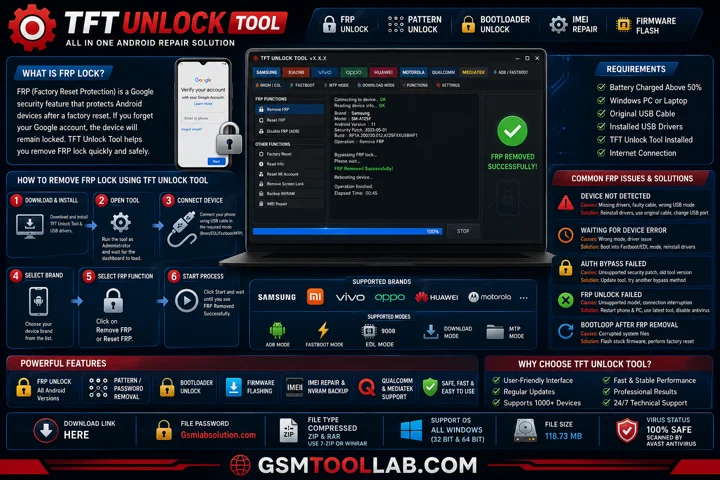
What is FRP Lock?
FRP (Factory Reset Protection) is a security feature available on Android devices running Android 5.1 and later. After a factory reset, Google requires the previously synced account to verify device ownership.
If you forget the Google account or password, the device remains locked until the FRP protection is removed.
What is TFT Unlock Tool?
TFT Unlock Tool is a professional Android repairing and unlocking software that supports:
- FRP Unlock
- Pattern/Password Removal
- Bootloader Unlock
- Firmware Flashing
- IMEI Repair
- Qualcomm & MediaTek Support
It supports many Android brands including Samsung, Xiaomi, Vivo, Oppo, Huawei, Motorola, and more.
Requirements Before Removing FRP
Before starting, make sure you have:
- Battery charged above 50%
- Windows PC or Laptop
- Original USB Cable
- Installed USB Drivers
- TFT Unlock Tool Installed
- Internet Connection
How to Remove FRP Lock Using TFT Unlock Tool
Step 1: Download and Install TFT Unlock Tool
Download the latest version of TFT Unlock Tool from a trusted official website.
After downloading:
- Extract ZIP or RAR file
- Install setup
- Install USB drivers
- Restart your PC
Step 2: Open TFT Unlock Tool
- Run the tool as Administrator
- Wait for the dashboard to load completely
Step 3: Connect Your Device
Connect your Android phone using a USB cable.
- Depending on your device:
- Brom Mode
- Use Fastboot Mode
- EDL Mode
- MTP Mode
Step 4: Select Device Brand
Choose your mobile brand from the list:
- Motorola
- Samsung
- Xiaomi
- Vivo
- Oppo
- Huawei
Step 5: Select FRP Function
Click Now:
- Remove FRP
OR
- Reset FRP
depending on the device model.
Step 6: Start FRP Unlock Process
Click the Start button.
The tool will:
- Detect device
- Bypass Google verification
- Remove FRP lock
Wait until you see:
FRP Removed Successfully
Common FRP Issues and Solutions
1. Device Not Detected
Causes:
- Missing USB drivers
- Faulty cable
- Wrong USB mode
Solution:
- Reinstall drivers
- Use original cable
- Change USB port
2. Waiting for Device Error
Causes:
- Phone not in correct mode
- Driver issue
Solution:
- Boot device into Fastboot or EDL mode
- Reinstall Qualcomm or MTK drivers
3. Auth Bypass Failed
Causes:
- Unsupported security patch
- Old tool version
Solution:
- Update TFT Unlock Tool
- Try another bypass method
4. FRP Unlock Failed
Causes:
- Unsupported model
- Connection interruption
Solution:
- Restart phone and PC
- Use latest tool version
- Disable antivirus temporarily
5. Bootloop After FRP Removal
Causes:
- Corrupted system files
Solution:
- Flash stock firmware
- Perform factory reset
Tips for Successful FRP Unlock
- Always use updated drivers
- Charge battery above 50%
- Use original USB cable
- Disable antivirus if tool crashes
- Download latest TFT version
Conclusion
TFT Unlock Tool is one of the best Android servicing tools for removing FRP locks, unlocking devices, repairing IMEI, and flashing firmware. It provides an easy solution for users who are locked out of their Android devices after a factory reset.
If you follow the steps carefully and install proper drivers, you can remove FRP locks safely without technical expertise.
FAQ’s
Is TFT Unlock Tool free?
Some versions are free, while advanced features may require activation.
Can TFT Unlock Tool remove Samsung FRP?
Yes, it supports Samsung FRP removal on many models.
Does TFT Unlock Tool support MediaTek devices?
Yes, it supports both Qualcomm and MediaTek Android devices.
Why is my device not detected?
Usually because of missing USB drivers or incorrect connection mode.
Is TFT Unlock Tool safe to use?
Yes, if downloaded from a trusted source and used correctly.